


How I Turned my Linksys WRT54G Router into a Client
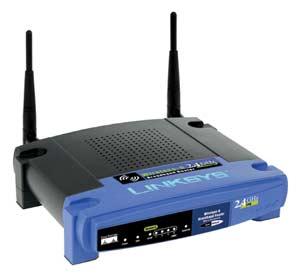
The other day I was putting together a computer for my 2.75 year old son (he loves video games, and I desperately wanted sole ownership of my computer again). I decided to put it in our bedroom, hooked up to our 42″ Sony Trinitron for all of his Super Mario extravaganzas. While putting it together, I realized that I didn’t have any extra wireless network cards lying around – but I figured it wouldn’t matter, its just for Jonas’s games and he won’t need to be surfin the web, etc. Just in case, I put in a regular old wired network card.
After the install, I decided I should figure out a way to get his computer online, for updates and such… but I still didn’t have any wireless network cards lying around… but I did have an old WRT54G Wireless Router that had been collecting dust for a few months.. surely I could use this, somehow!
So after a little Googling, I stumbled upon project called DD-WRT (http://www.dd-wrt.com). Originally intended as “just a modification of the original Linksys Firmware for supporting simple Radius Authentication”, the project took on a new life and it’s author “decided to add some more small tools and fancy things, just for fun”. WW-DRT is a firmware replacement for many common routers, adding a plethora tools and features that make life (and networking) easier.
After searching on their site through their hardware compatibility list, I find my router (WRT54G v2.0) and following their recommendations (and after reading other peoples’ experiences and success stories on google), I decided to install the “Vintage Mini” version of their firmware. After downloading, installation was a snap!
First I hooked up the router, plugged it in, and ran an ethernet cable from the computer to an empty port on the back of the router. Then I opened up firefox, and pointed it to the router’s default IP address (192.168.1.1). Once there, I navigated my way to the “Upgrade Firmware” screen, selected my newly downloaded firmware, and off it went. After about a minute, I was running my new firmware. Awesome. After a little more googling, I was able to log in to the administrative screen (login: root, pw: admin – assuming the router was using its default login/pw on my particular router).
Now, setting it up as a client. I followed a quick 4 step process I found online, and it worked like a charm. I’ll paraphrase the important parts here – but just in case, here’s a direct link to the instructions: (http://www.dd-wrt.com/wiki/index.php/Client_Mode_Wireless).
Note: In case it’s not obvious – When ROUTER is referenced, it refers to the router you are trying to connect to, and when CLIENT is referenced, it refers to the router you are trying to use as a client.
|
1 2 3 4 5 6 7 8 9 10 11 12 13 14 15 16 17 18 19 20 21 22 23 24 25 26 27 28 29 30 31 32 33 34 35 36 37 38 39 40 41 42 43 44 45 46 47 48 49 50 51 52 53 54 55 56 57 58 59 60 61 62 63 64 65 66 67 68 69 70 71 72 73 74 75 76 77 78 79 80 81 82 83 84 85 86 87 88 89 90 91 92 93 94 95 96 97 98 |
Step 1 1. Select Wireless > Basic Settings tab 2. Set Wireless Network.Wireless Mode = Client 3. Set Wireless Network.Wireless Network Mode = Mixed 4. Set Wireless Network.Wireless Network Name (SSID) = ROUTER' S SSID 5. Click Save Setting button Step 2 The settings in this tab will vary depending on what security settings are configured on the ROUTER. Basically it is the same as you enter when connecting a laptop or any other wireless device with the ROUTER. I will use the example of WEP based encryption with a 64 bit hex key. If your ROUTER doesn't have any security settings, then this step can be skipped. 1. Select Wireless > Security tab 2. Set Wireless Security.Security Mode = WEP 3. Set Wireless Security.Default Transmit Key = 1 (or which ever your ROUTER is configured to use) 4. Set Wireless Security.WEP Encryption = 64 bits 10 hex digits 5. Set Wireless Security.Passphrase = Leave blank if you manually entered your key when setting up router otherwise enter the passphrase and click generate 6. Set Wireless Security.Key 1 = ROUTER'S WEP KEY assuming you didnt enter a passphrase and hit generate in the previous step. 7. Repeat #6 for the rest of the keys to set them to what ever was configured on the ROUTER. 8. Click Save Setting button Step 3 1. Select Setup > Basic Setup tab 2. Set Wireless Setup.Internet Connection Type = Static IP 3. Set Wireless Setup.Internet IP Address = 192.168.1.2 (or whatever ip address you identified in step 2 of preperation) 4. Set Wireless Setup.Subnet Mask = 255.255.255.0 5. Set Wireless Setup.Gateway = 192.168.1.1 6. Set Wireless Setup.Static DNS 1 = 192.168.1.1 7. Set Wireless Setup.Static DNS 2 = aaa.bbb.ccc.ddd 8. Set Wireless Setup.Static DNS 3 = aaa.bbb.ccc.eee 9. Set Wireless Setup.Router Name = BRIDGE (doesn't matter) 10. Set Wireless Setup.Host Name = BRIDGE (doesn't matter) 11. Set Wireless Setup.Domain Name = Blank (unless you have a reason to enter it) 12. Set Wireless Setup.MTU = Auto 13. Set Network Setup.Local IP Address = 192.168.2.2 (increment the 3rd octet of the Wireless Setup.Internet IP Address field by 1, e.g 192.168.1+1.2. So now 192.168.1.2 is your ROUTER facing IP and 192.168.2.2 is your CLIENT network facing IP. 14. Set Network Setup.Subnet Mask = 255.255.255.0 15. Set Network Setup.Gateway = 192.168.2.2 (see Troubleshooting note "Resolving DNS lookup Problems") 16. Set Network Setup.Local DNS = 192.168.1.1 (see Troubleshooting note "Resolving DNS lookup Problems") 17. Set Network Setup.DHCP Server = Enabled (To let the CLIENT issue dynamic IPs to the devices hooked up to it) 18. Set Network Setup.Starting IP Address = 192.168.2.100 (You may have to click on Save Settings button before you see 192.168.2 written in this field. If you do, make sure you connect back to the CLIENT using the ip address is #13 above) 19. Set Network Setup.WINS = 0.0.0.0 20. Click on Save Settings button. Notice that after this configuration, your CLIENT bridge/router has a different IP address for administration. So if you are not automatically redirected to the new IP, you may have to connect to the administration web page by typing 192.168.2.2 yourself. Also note that at this stage, you may not be able to connect to the new IP unless you are using a computer hooked up to one of the LAN ports of the CLIENT itself. And you may need to temporarily setup your computer's TCP/IP config to use a static IP in the 192.168.2.* subnet. Step 4 These steps are temporary so that you don't run into any issues during setup. Once you have everything working, you can undo these settings one by one as long as your setup keeps working. Theoretically speaking, you shouldn't need to because your internal network is protected by the firewall of your ROUTER from the internet anyway. But if you are security conscious then you may want to undo these. 1. Select Security > Firewall 2. Set Firewall.Firewall Protection = Disabled 3. Set Firewall.Block Anonymous Internet Requests = unchecked 4. Click Save Settings button At this point, you should be able to Click on Status > Wireless tab and see that you are connected to the ROUTER. You should also be able to hook up a device or computer to one of the four LAN ports of the CLIENT and notice that it obtains a dynamic IP like 192.168.2.100 or some number greater than 100. You should also be able to ping your ROUTER, i.e. ping 192.168.1.1. You should also be able to ping the internet, e.g. ping www.yahoo.com. If you are not successful, then retry after restarting the device/computer connected to the CLIENT. You may want to reboot the CLIENT and ROUTER as well. |
That’s it! I was actually able to skip step 4, because everything worked beautifully for me, but I threw it in there just in case. After that, my computer was instantly connected to the network, and I was online. The entire process took all of 5 minutes, was extremely painless, and had me surfing the web in no time.
If something went wrong, see the aforementioned link:
Good luck!
~ digifuzz.

Written by digifuzz




There are 10 comments.
Sounds like you are having more fun with this than Jonas!! C’mon, dad, let him have a turn!! 🙂
Hello webmaster
I would like to share with you a link to your site
write me here preonrelt@mail.ru
Thanks for that setup guide – it worked fist time… amazing!
Cheers.
Hi there, just stopped by doing some research for my Linksys site. Can’t believe the amount of information out there. Not what I was looking for, but interesting page. Have a nice day.
Good article, but it doesn’t seem to make use of my router ip address, any hints?
God damn good article.. Thank you so much. I wired my 2 routers now. Thank you!
Interesting web page that I found when I googled “WRT54GS as client”. I believe I’m wanting to do something similar to this. My big question is: when the router is set in the “client” mode, can it work like a wireless adapter. In this case I mean, can the computer to which it is connected easily do a search for available wireless networks, and connect to the networks? I suspect it is not that easy, and likely more like my Linksys WAP54G Access Point. I can use the AP as a client, but I have to log into it using it’s IP address, and then go to it’s “Client” section, then selecting the “Site Survey” tab.
Thanks! I got this working almost right away. It’s really great when someone like you takes the time to help the rest of us with free advice like this.
Thank you for sharing excellent informations. Your web site is so cool. I’m impressed by the details that you’ve on this blog. It reveals how nicely you understand this subject. Bookmarked this website page, will come back for extra articles. You, my pal, ROCK! I found just the info I already searched all over the place and simply couldn’t come across. What an ideal website.
thank you for setting this up. i was looking for somthing and wasnt sure and then got into clients n such and found this for my upstairs Linksyswrt300N router to connect succesfully to our AirPort Extreme Router.
i had it half connected bc it was showing under my airport app on my ipod but wasnt succesful to the net right, so i reset the router and followed u and no time i got throu other than connected to the Extreme bbut the net as well.
Thanks again.
-Anthony
i was gettn our upstairs router connected for our Bue Ray Live player that has Netflix and all that in my parrents room. I’ve been doing it by as a repeater. lol. this is alot better. 😀
By submitting a comment you grant digifuzz.net a perpetual license to reproduce your words and name/web site in attribution. Inappropriate and irrelevant comments will be removed at an admin’s discretion. Your email is used for verification purposes only, it will never be shared.